

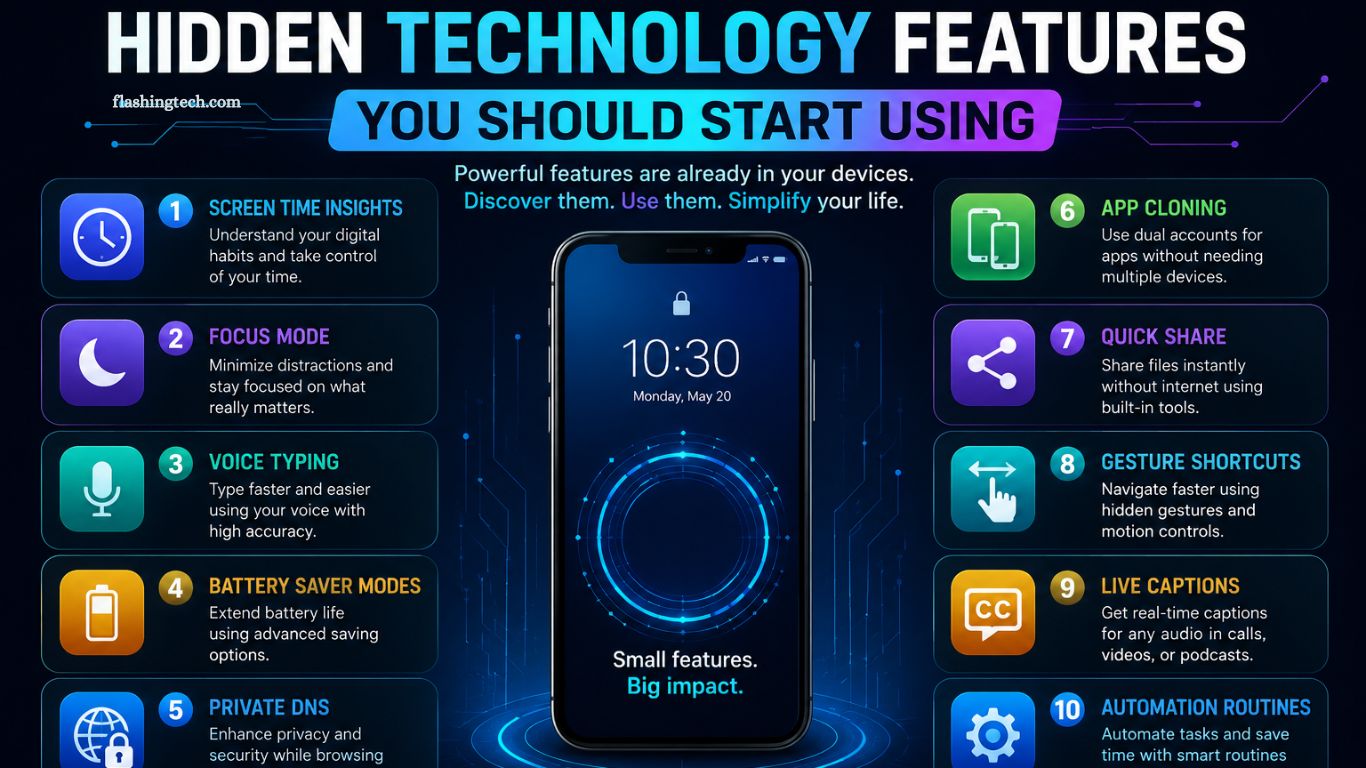
Modern technology offers far more than the basic functions most people use every day. Smartphones, computers, browsers, apps, and smart devices contain useful features that often remain unnoticed. These hidden tools can improve productivity, security, organization, accessibility, and everyday convenience without requiring expensive upgrades.
Learning a few lesser-known technology features can make your existing devices feel faster and smarter. From password managers and voice controls to screen recording and automation tools, these features can save time while making routine tasks easier.
Read More: Top Technology Trends That Will Shape the Future
Use Password Managers for Better Security
Remembering multiple strong passwords can become difficult, especially when every account requires a unique combination. Password managers solve this problem by securely storing login credentials and generating stronger passwords.
Many modern browsers and smartphones include built-in password management tools. These systems can automatically fill usernames and passwords, alert users about weak credentials, and sometimes notify them about compromised passwords.
Using a password manager reduces the temptation to reuse the same password across multiple accounts. Enabling two-factor authentication alongside strong passwords can provide an additional layer of protection.
Turn On Two-Factor Authentication
Two-factor authentication is one of the most valuable security features available today. It requires an additional verification step after entering a password.
Depending on the service, verification may involve an authentication app, security key, biometric confirmation, or temporary code. Even if someone discovers your password, the additional security layer can make unauthorized access significantly harder.
Check the security settings of important accounts and enable two-factor authentication whenever available.
Explore Built-In Screen Recording
Screen recording can be useful for creating tutorials, saving demonstrations, reporting technical problems, or capturing important activity on your device.
Many Android phones, iPhones, Windows computers, and other modern devices include native screen recording tools. Users often overlook these options because they are hidden inside quick settings or control panels. Before installing a third-party screen recorder, check whether your device already provides this feature.
Use Voice Typing to Write Faster
Voice typing can dramatically speed up writing. Instead of manually typing every sentence, users can speak naturally while their device converts speech into text.
Voice typing works across many smartphones, messaging apps, document editors, and productivity tools. It can be particularly useful for drafting notes, replying to messages, or capturing ideas quickly. Speaking punctuation commands can also make longer dictation sessions more efficient.
Take Advantage of Browser Tab Features
Web browsers offer several features designed to manage large numbers of open tabs. Users can group tabs, pin frequently visited pages, reopen recently closed tabs, and synchronize browsing sessions across devices.
Tab groups can separate work, research, shopping, entertainment, and personal browsing. This simple organization method can reduce clutter and make important websites easier to find. Browser shortcuts can also improve navigation without repeatedly reaching for the mouse.
Use Focus and Do Not Disturb Modes
Constant notifications can interrupt concentration throughout the day. Focus modes and Do Not Disturb settings allow users to control which alerts appear during specific activities.
Users can create separate settings for work, studying, sleeping, driving, or personal time. Important contacts and selected applications can remain available while less important notifications stay silent. A well-configured focus mode can make a smartphone significantly less distracting.
Discover Keyboard Shortcuts
Keyboard shortcuts remain one of the fastest ways to improve computer productivity. Common shortcuts can help users copy, paste, search, switch applications, undo actions, save documents, and manage browser tabs.
Windows and macOS both support extensive shortcut combinations. Learning even a handful of frequently used shortcuts can save considerable time over weeks and months.
Advanced users can explore application-specific shortcuts for editing software, browsers, office programs, and creative tools.
Use Cloud Storage More Effectively
Cloud storage is not only useful for keeping backup copies of files. It can also synchronize documents, photos, folders, and other information across multiple devices.
A file saved on one device can become accessible from another without manually transferring it. Cloud services can also support collaboration, file sharing, and automatic synchronization.
Users should review synchronization settings carefully and keep sensitive information protected with strong account security.
Try Built-In Accessibility Features
Accessibility tools are valuable for far more people than users with disabilities. Features such as larger text, magnification, captions, voice control, screen readers, color adjustments, and reduced motion can improve everyday device use.
Live captions can make videos easier to follow in noisy environments. Magnification can help with small text, while voice control can simplify hands-free interactions. Exploring accessibility settings can reveal practical tools that users may never have noticed.
Use Nearby Sharing Features
Modern devices often include simple ways to transfer files between nearby devices. Depending on the operating system, users may be able to share photos, documents, links, contacts, or other files wirelessly.
These tools can eliminate the need for cables, email attachments, or messaging apps when transferring files between compatible devices. Check your device’s sharing settings to see which nearby transfer options are available.
Automate Repetitive Tasks
Automation features can turn repetitive actions into simple routines. Smartphones and computers can perform certain actions automatically based on time, location, device status, or user-defined conditions.
Examples include activating a focus mode at work, adjusting smart-home devices at night, launching frequently used applications, or creating recurring reminders. Automation becomes particularly useful when a task happens repeatedly and follows the same pattern.
Use Search Tools Instead of Manually Browsing Files
Finding an old document, image, email, or application does not always require opening multiple folders. Built-in search tools can locate files quickly using names, keywords, file types, dates, and other information.
Learning advanced search operators can make the process even faster. Desktop operating systems, email platforms, cloud storage services, and browsers often provide powerful search capabilities. Good search habits can save significant time when working with large collections of digital files.
Keep Software and Devices Updated
Software updates often introduce more than visual changes. Updates can improve security, fix bugs, increase compatibility, and introduce useful features.
Many users postpone updates because their current device already works properly. However, outdated software can leave devices exposed to known security problems. Enable automatic updates when appropriate and regularly check whether important applications require newer versions.
Customize Quick Settings
Quick settings provide shortcuts to frequently used functions. Wi-Fi, Bluetooth, flashlight, screen brightness, mobile data, airplane mode, and screen recording can often be accessed without opening full settings menus.
Most smartphones allow users to rearrange these controls. Place frequently used features where they are easy to reach and remove shortcuts that rarely provide value. A customized control panel can make everyday device management much faster.
Make Better Use of Digital Notes
Digital note-taking tools can do much more than store plain text. Modern apps may support voice notes, images, document scanning, handwriting, reminders, tags, checklists, and synchronization.
Creating a simple organization system can turn scattered notes into a useful personal knowledge base. Searchable notes also make it easier to recover information months after recording it.
Frequently Asked Questions
What are hidden technology features?
Hidden technology features are useful tools built into devices, apps, and software that users often overlook or rarely use.
Why should I explore hidden technology features?
They can improve productivity, security, convenience, accessibility, and overall device performance without requiring new hardware.
Which hidden feature should I use first?
Start with password management and two-factor authentication because they can significantly improve account security.
Can hidden features save time?
Yes. Keyboard shortcuts, voice typing, automation, quick settings, and advanced search can reduce time spent on repetitive tasks.
Are built-in technology features safe?
Built-in features from trusted operating systems are generally designed with security and privacy considerations, but users should review their settings carefully.
Do hidden features require additional apps?
Not always. Many useful features are already included in smartphones, computers, browsers, and operating systems.
Conclusion
Hidden technology features can make everyday digital tasks faster, safer, and more convenient. Tools such as voice typing, password managers, screen recording, automation, focus modes, keyboard shortcuts, and accessibility settings can improve productivity without requiring expensive upgrades. Take time to explore the settings on your smartphone, computer, browser, and favorite apps.

1 Comment
Pingback: Why Digital Innovation Matters More Than Ever - FlashingTech