

ChatGPT has quickly become the world’s most popular AI chatbot, praised for its powerful capabilities and intuitive design. Its interface, consistent across both mobile and web platforms, makes interacting with advanced AI accessible to anyone, whether for casual conversation, research, or productivity. This guide provides a comprehensive walkthrough of ChatGPT’s interface, helping users navigate its features efficiently across devices.
At the heart of the experience is the main prompt window, where conversations happen seamlessly. Beyond this, numerous tools and hidden functionalities enhance the platform, offering a range of options for customizing interactions, managing chats, and optimizing workflow. By the end of this guide, you will understand how to use ChatGPT confidently and make the most of every feature available.
Read More: How to Build Truly Scalable Mobile Apps: A 2025 Technology Guide
Account Name
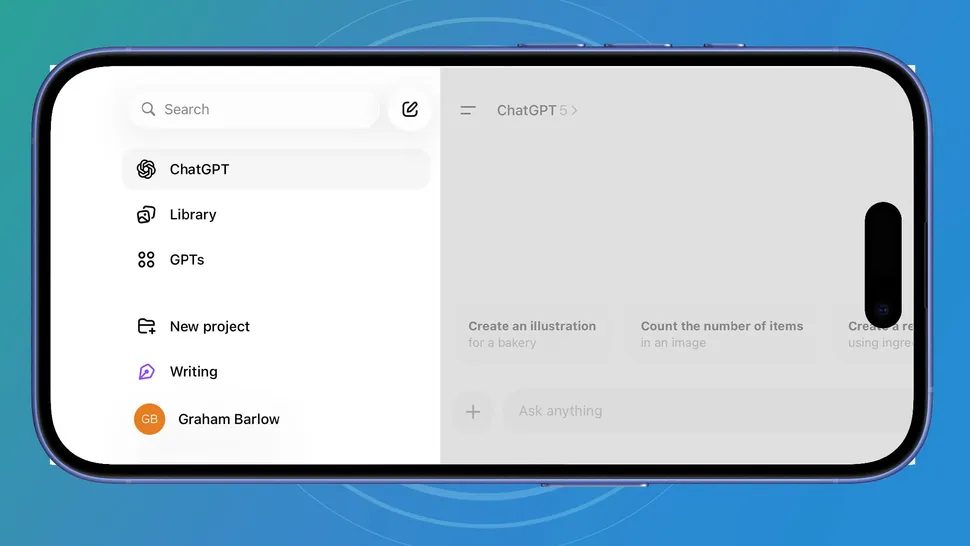
On mobile, access your account by tapping the menu button in the top-left corner, then selecting your profile name at the bottom-left of the screen. On the web, simply click your account name located in the bottom-left corner.
This section opens ChatGPT’s Settings, where you can manage key features. Here, you can connect ChatGPT to external services like Gmail through the Connectors option, upgrade to a Plus plan, and customize your experience to suit your preferences, ensuring ChatGPT functions exactly the way you want.
Chat History
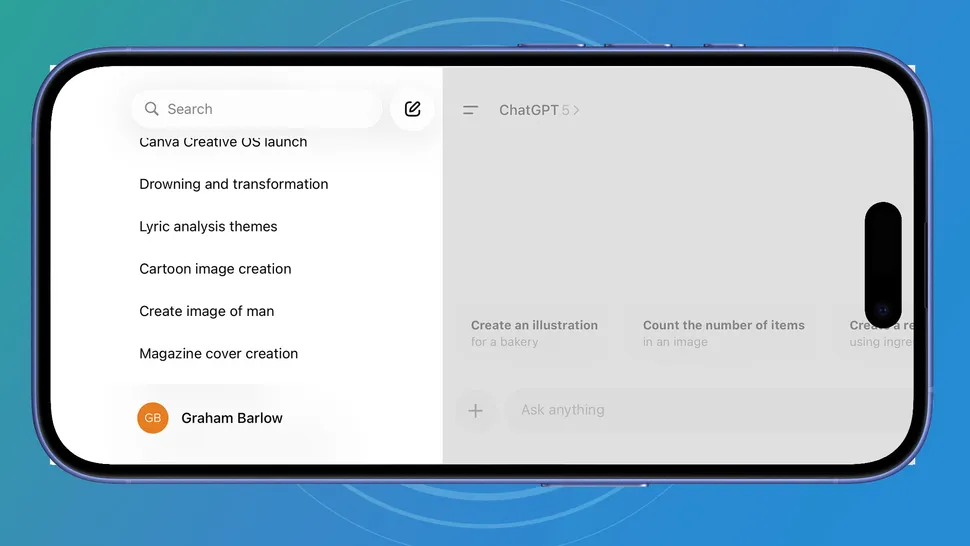
All your previous chats are accessible above your account name on both mobile and web. You may need to scroll through the menu to view the full list. To revisit a past conversation, simply locate it here, select it, and continue the discussion exactly where you left off.
By default, ChatGPT saves a record of all your interactions. If you prefer not to retain a chat, you can enable Temporary Chat using the button in the top-right corner of the prompt screen, which ensures the conversation is not stored.
GPTs
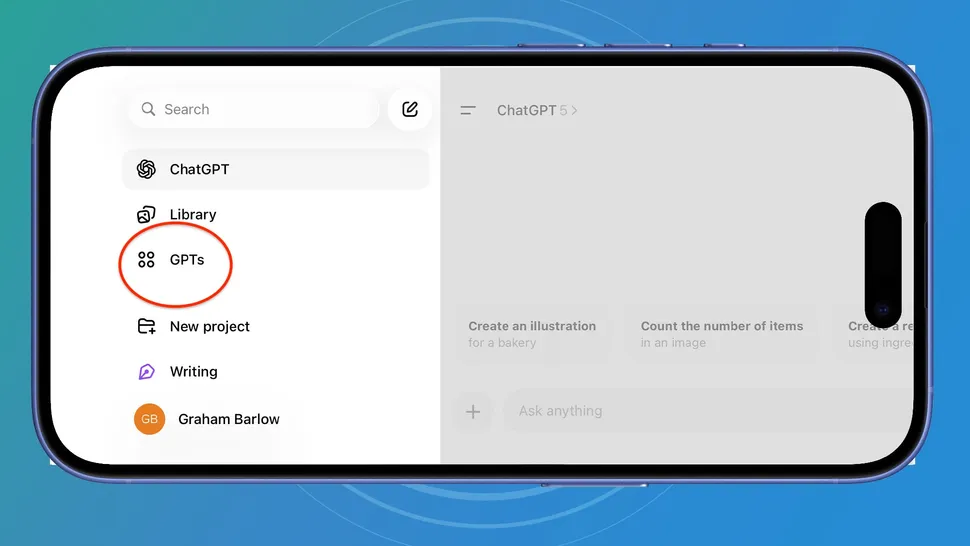
You can explore different GPTs by selecting GPTs from the upper section of the left-hand menu. These are customized versions of ChatGPT, created for specific tasks or purposes.
Some GPTs specialize in generating professional-quality images, others focus on making ChatGPT’s responses more conversational, while many assist with creative writing, grammar, or other specialized needs. The variety is wide, offering tools tailored to a wide range of tasks and workflows.
Prompt Bar
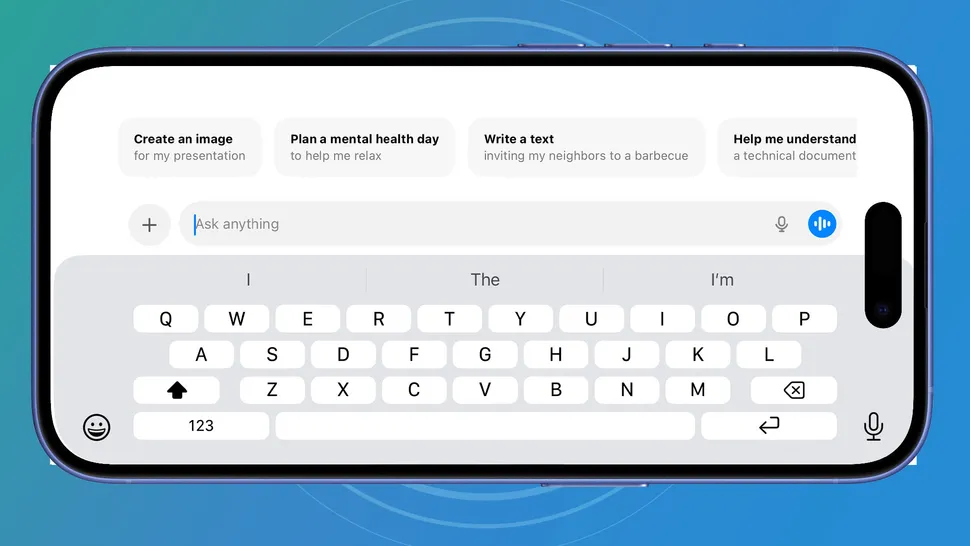
On the web, the prompt bar appears in the center of the screen and shifts to the bottom once a conversation begins. On mobile, it is located just above the on-screen keyboard.
The bar displays the placeholder text “Ask anything, reflecting ChatGPT’s versatility—you can type virtually any question or prompt and receive an intelligent response. The prompt bar also serves as the place to reply when ChatGPT asks you questions, making it the central hub for all interactions.
The + Menu
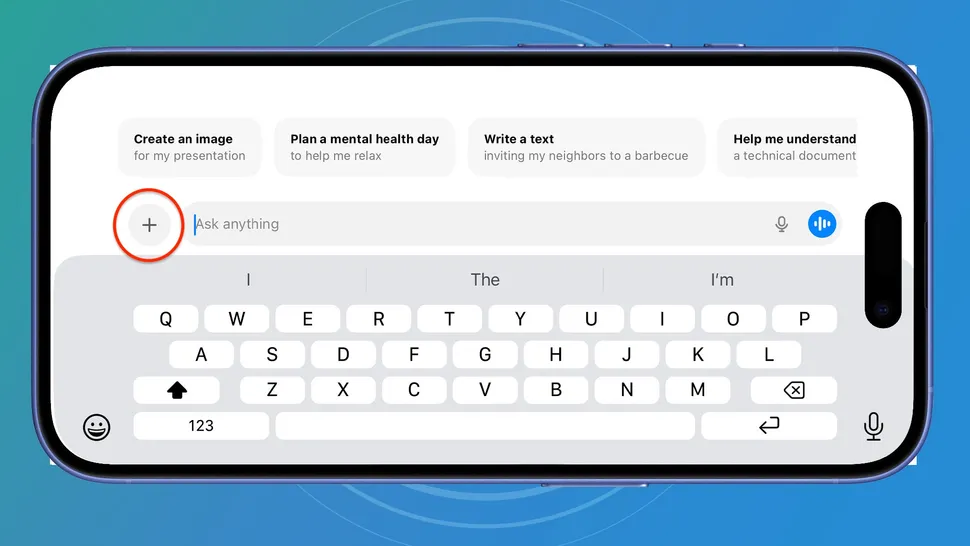
The + menu serves as ChatGPT’s primary access point for its major features. From here, you can launch tools such as Agent Mode, Deep Research, Study Mode, Web Search, and file uploads.
On web or mobile, simply click or tap the + menu to reveal a drop-down list. Select the desired feature, and a blue lozenge will appear in the prompt bar, confirming that the mode has been activated and is ready for use.
ChatGPT Voice
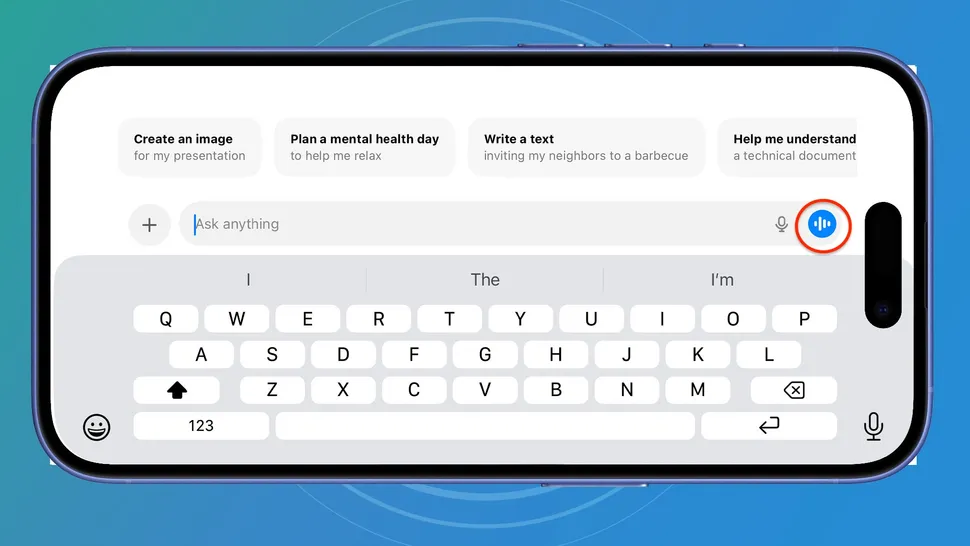
The blue icon to the right of the prompt bar activates ChatGPT Voice. Click or tap the icon to enter Voice Mode, allowing you to interact with ChatGPT using your microphone.
Voice Mode is particularly convenient on mobile devices. In addition to speaking with ChatGPT, you can also use screen-sharing, enabling the AI to view content through your device’s camera for enhanced, context-aware interactions.
Frequently Asked Questions
What is ChatGPT, and how do I access it?
ChatGPT is an AI chatbot developed by OpenAI. You can access it via a web browser at chat.openai.com or through the official mobile app available on iOS and Android.
How do I sign in or create an account?
Tap or click your account name at the bottom-left of the screen. From here, you can sign in, create a new account, or manage your account settings.
Where is my chat history stored?
Your previous conversations appear above your account name in the menu on both mobile and web. You can scroll to find and continue any past chat. Temporary Chat mode allows you to prevent storage of specific conversations.
What is the prompt bar, and how do I use it?
The prompt bar is where you type your questions or responses. On web, it appears in the center of the screen and moves to the bottom during a chat; on mobile, it sits above the keyboard.
What are GPTs and how do I use them?
GPTs are custom versions of ChatGPT designed for specific tasks, such as creative writing, grammar assistance, or professional image generation. Access them from the GPTs option in the left-hand menu.
What features can I access from the + menu?
The + menu lets you launch major tools like Agent Mode, Deep Research, Study Mode, Web Search, and file uploads. Selecting a mode shows a blue lozenge in the prompt bar to indicate activation.
Conclusion
ChatGPT offers a powerful yet intuitive platform, seamlessly bridging the mobile and web experience. By understanding its interface—from the prompt bar and chat history to GPTs, the + menu, and Voice Mode—you can navigate its features with confidence and efficiency. Whether you’re revisiting past conversations, exploring specialized GPTs, or interacting via voice, each tool enhances your ability to engage with AI in meaningful ways.
